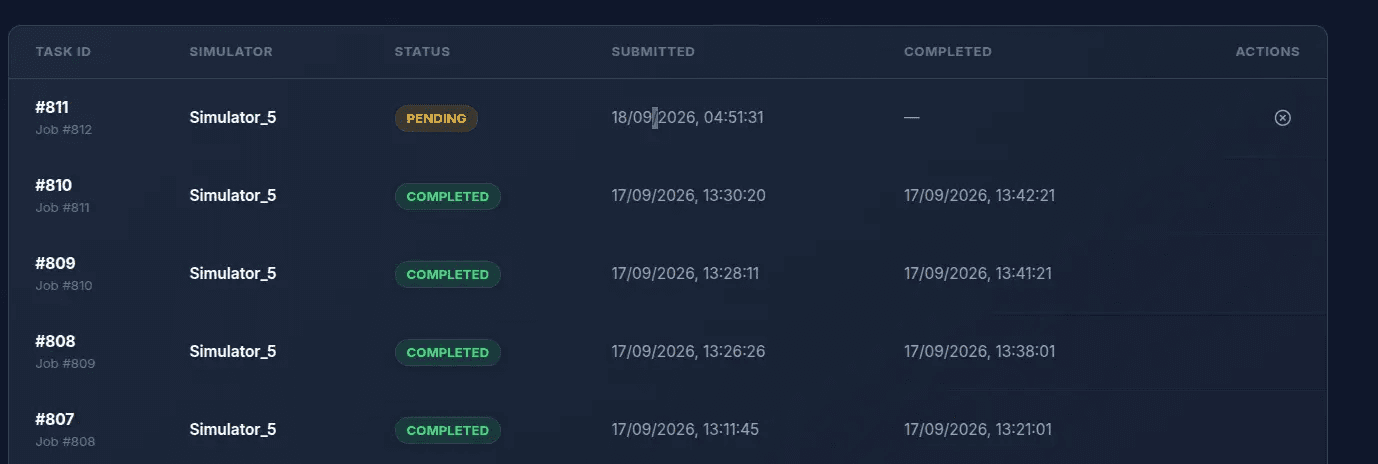
How to Run Cluster
Login with your user credentials
Sign in to TaskCluster with the username and password issued to you.
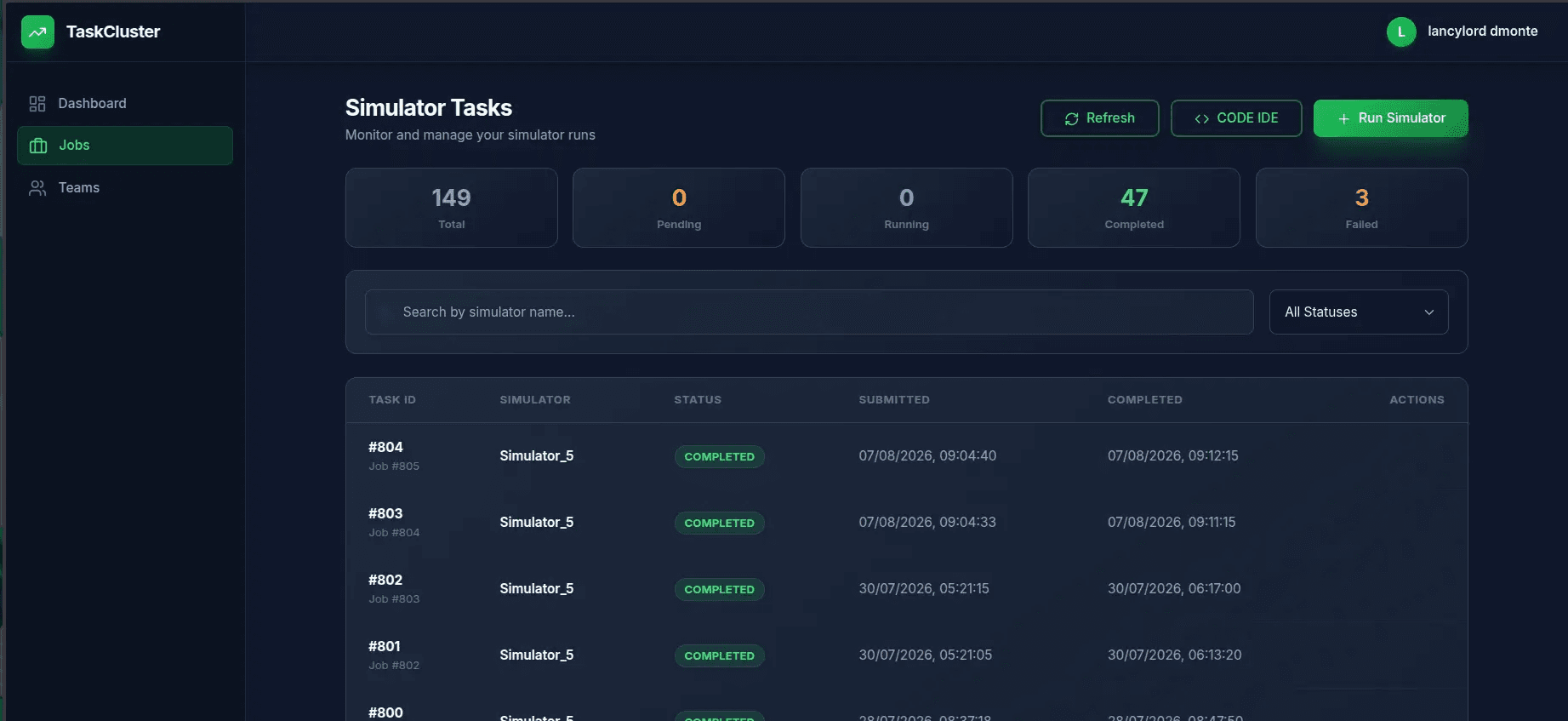
Look for the Jobs section
Once logged in, open Jobs from the left sidebar to see the Simulator Tasks dashboard.
Click <> CODE IDE to develop your strategy from the UI
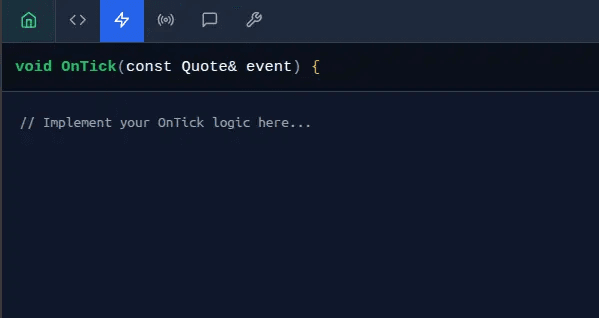
Below is how your IDE will look
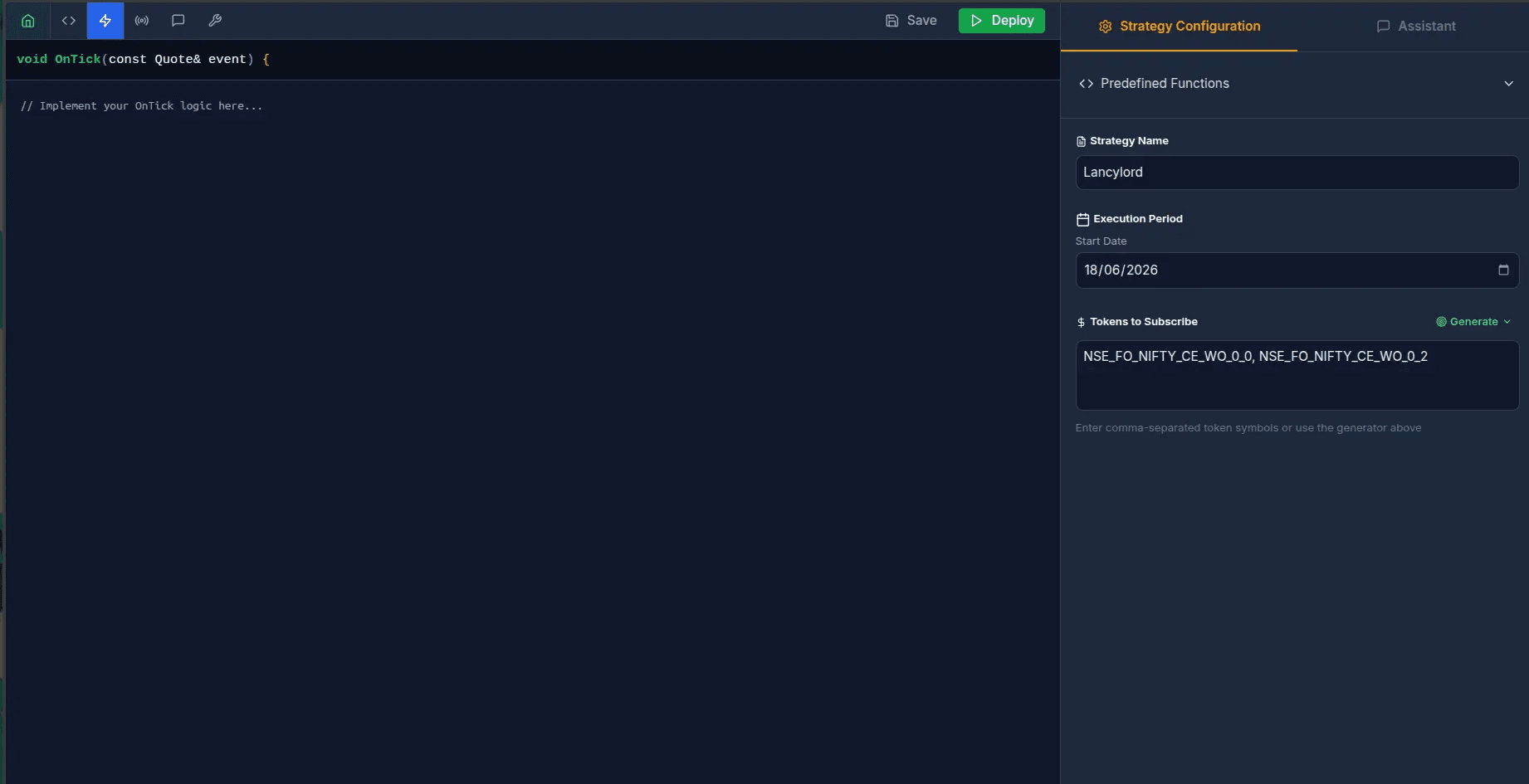
Strategy events

<> To include your custom symbolsOnTick To decide what to do when you receive ticksOnBcast To decide what to do when you receive 1-second dataOnOrderResponse To decide what to do when you receive order responsesCustom Code To add your own custom logic or functionsEvent data types
Click on an event's data type to see what fields are expected in its structure — e.g. click Quote and its definition will be shown.
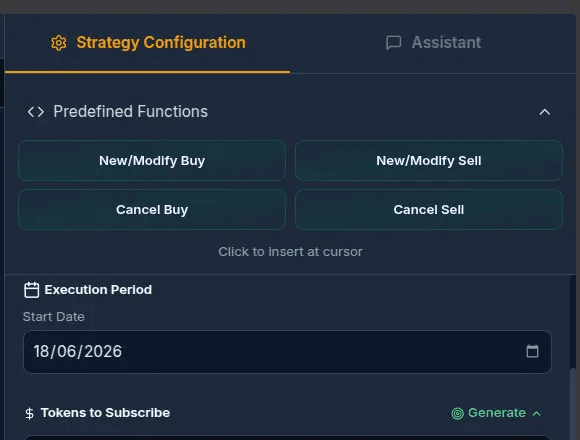
Predefined functions
Use the predefined function buttons to place new/modify orders or cancel orders without hand-writing the call.
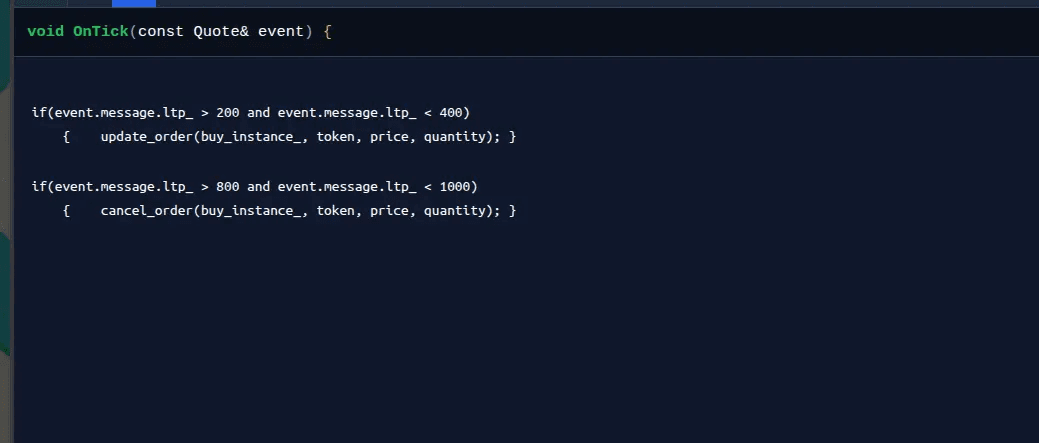
Example usage
Clicking a predefined function inserts it at your cursor. Update token, price and quantity for your strategy — leave buy_instance_ / sell_instance_ untouched.
Generate the symbols you want to trade
Create symbols for the tokens you want to trade, relative to ATM, using the token generator.
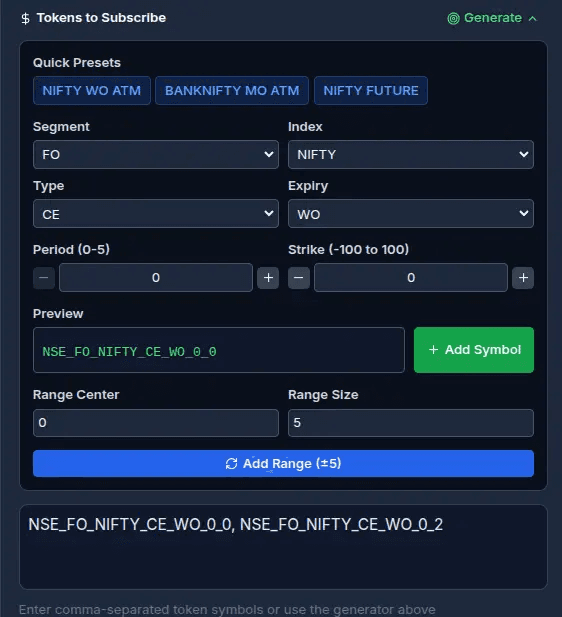
- Select the index, option type, and strike relative to ATM, then click Add Symbol.
- Repeat for every token you want to subscribe to, one at a time.
- Each symbol is appended to the list automatically after you click Add Symbol.
Format: {exchange}_{segment}_{index}_{ce/pe/fut}_{weeklyOptions/monthlyOptions}_{expiry week/month index}_{strike index relative to ATM, + or -}
Choose your execution type
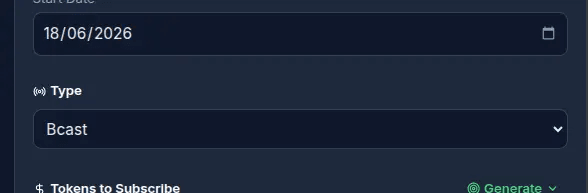
To run at TBT level + Bcast level, write your execution in both OnTick and OnBcast. For faster execution, put your code in OnBcast only. Set the sim type to either Bcast Sim (Bcast only) or Normal Sim (TBT + Bcast).
Deploy and track your job
Click Deploy to compile and run your simulator.
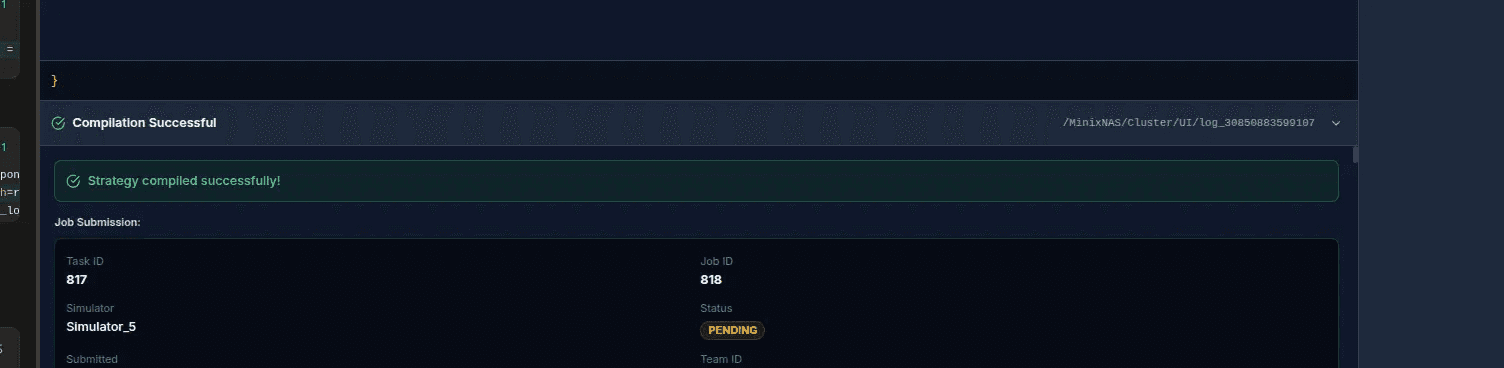
Track your job by its Job ID. The log location is shown in the top-right corner, for example:
Log in to your server credentials to check the logs there. Log files follow this naming pattern, where the number is your job ID: