
MINIX Research Platform
Strategy Development Guide — a walkthrough of the platform, from login to a completed backtest.
Introduction
This document walks through the MINIX Research Platform end to end: signing in, creating a new strategy, writing the strategy_logic function, configuring a backtest, running it, and reading the results.
The overall flow is: log in, open My Strategies, start a new strategy, fill in the hypothesis, write and configure the code, run the backtest, then check Logs, Orders, Trades, Tearsheet and Result once the run completes.
Logging In
Every session starts at the MINIX login screen. Enter your registered email and password, then select Log in.
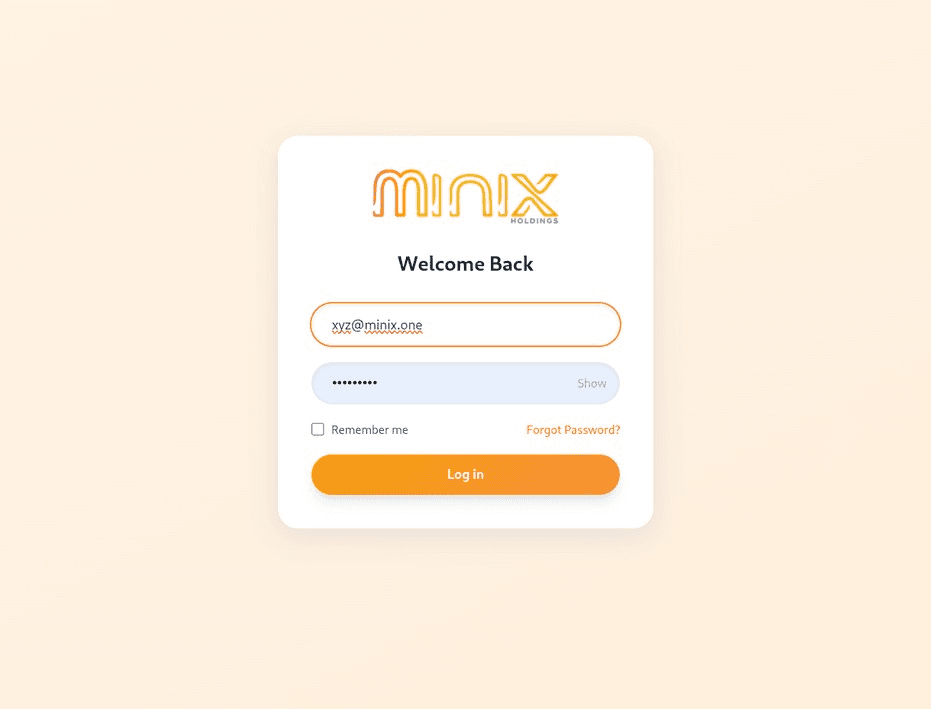
Figure 1 — The MINIX login screen.
My Strategies Dashboard
After signing in you land on My Strategies — a table listing every strategy you have saved, along with its data source, capital, underlying and lot size. From here you can search existing strategies or remove one using the bin icon on the right of its row.

Figure 2 — My Strategies. The "+ New Strategy" button is in the top-right corner.
Creating a New Strategy
Selecting "+ New Strategy" opens a short intake form. This is where the strategy is registered before any code is written.
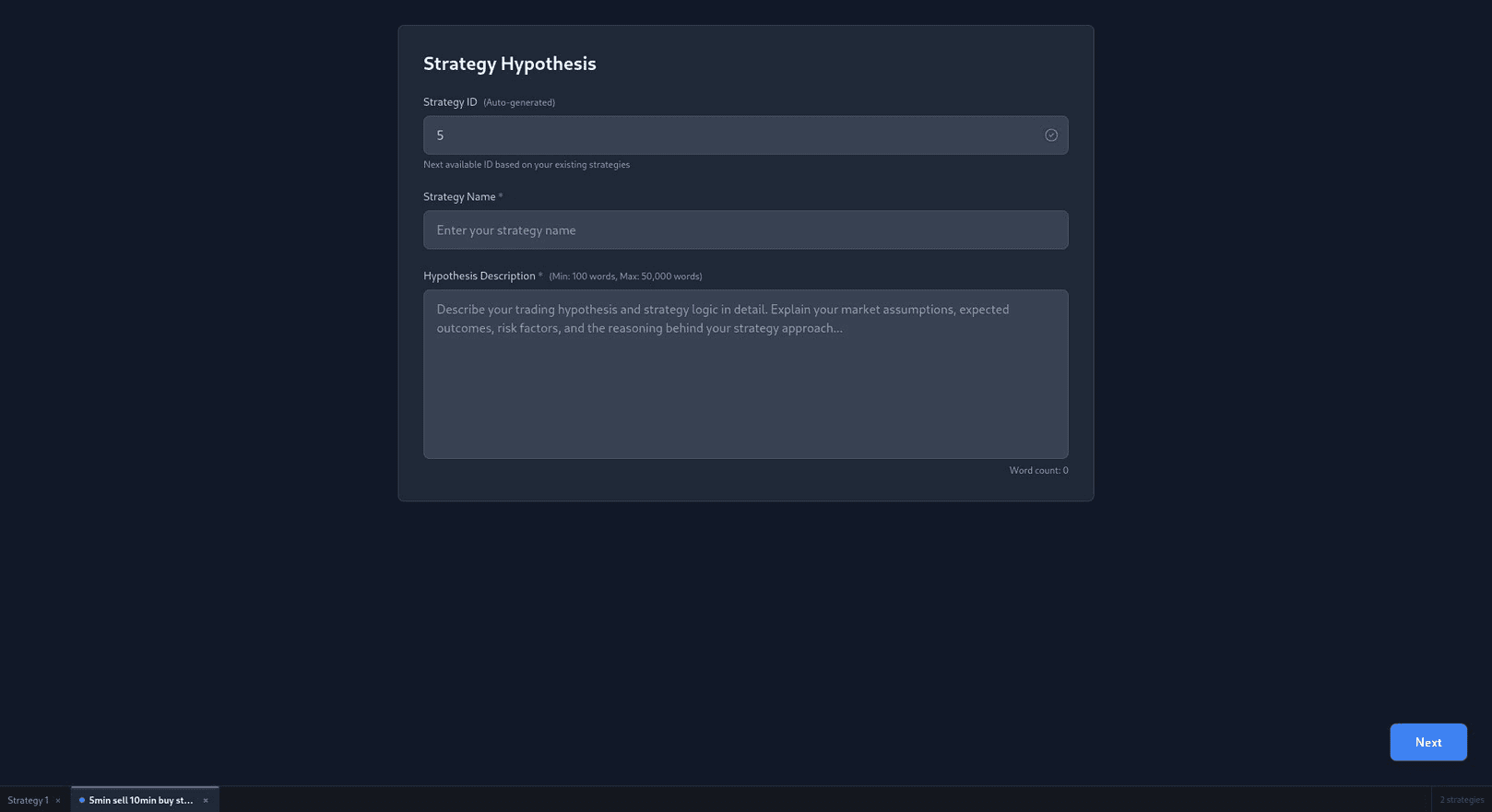
Figure 3 — The Strategy Hypothesis form.
Fields on this form
| Field | What to enter |
|---|---|
| Strategy ID | Generated automatically — the next free ID based on your existing strategies. Normally left as-is. |
| Strategy Name | A short, identifiable name. This is what appears in the My Strategies table and on the editor tab. |
| Hypothesis Description | Between 100 and 50,000 words. Describe the market assumption, the entry and exit rules, the expected edge, and the main risks. Write it in enough detail that it lines up with the strategy_logic code you are about to write, rather than a general statement of intent. |
Once all three fields are complete, select Next to open the code editor.
Strategy Editor and Configuration
This is the main workspace. The left-hand pane is a Python editor where the strategy_logic function is written. The right-hand pane is the Strategy Configuration panel, which controls what data is fed into that function during the backtest.
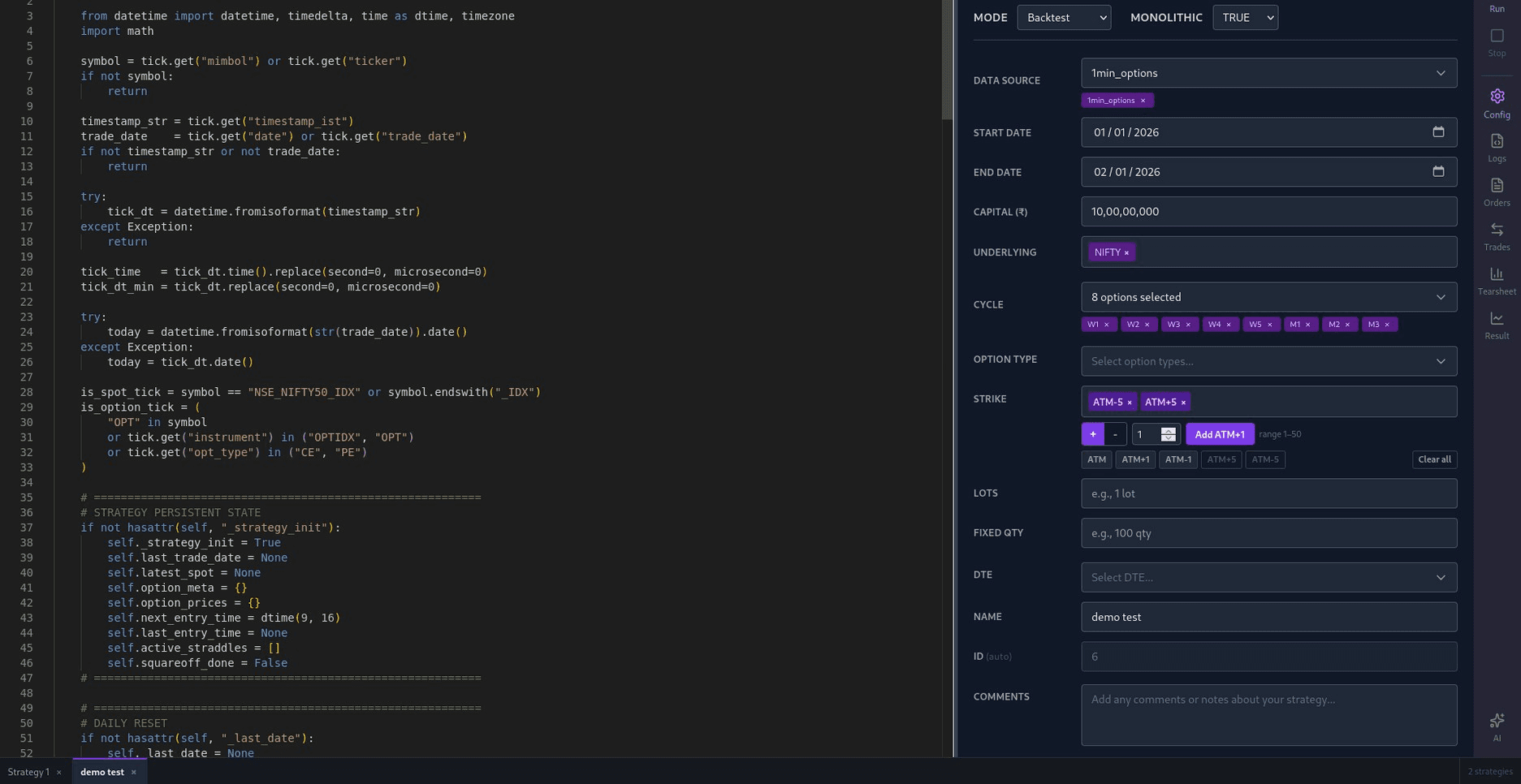
Figure 4 — Code editor (left) and Strategy Configuration (right). Run, Stop, Config, Logs, Orders, Trades, Tearsheet and Result are on the far-right rail.
You are not limited to one strategy or one run at a time. Each strategy or test you open gets its own tab along the bottom of the editor, so you can run more than one backtest at once and click a tab to jump straight back to that strategy.
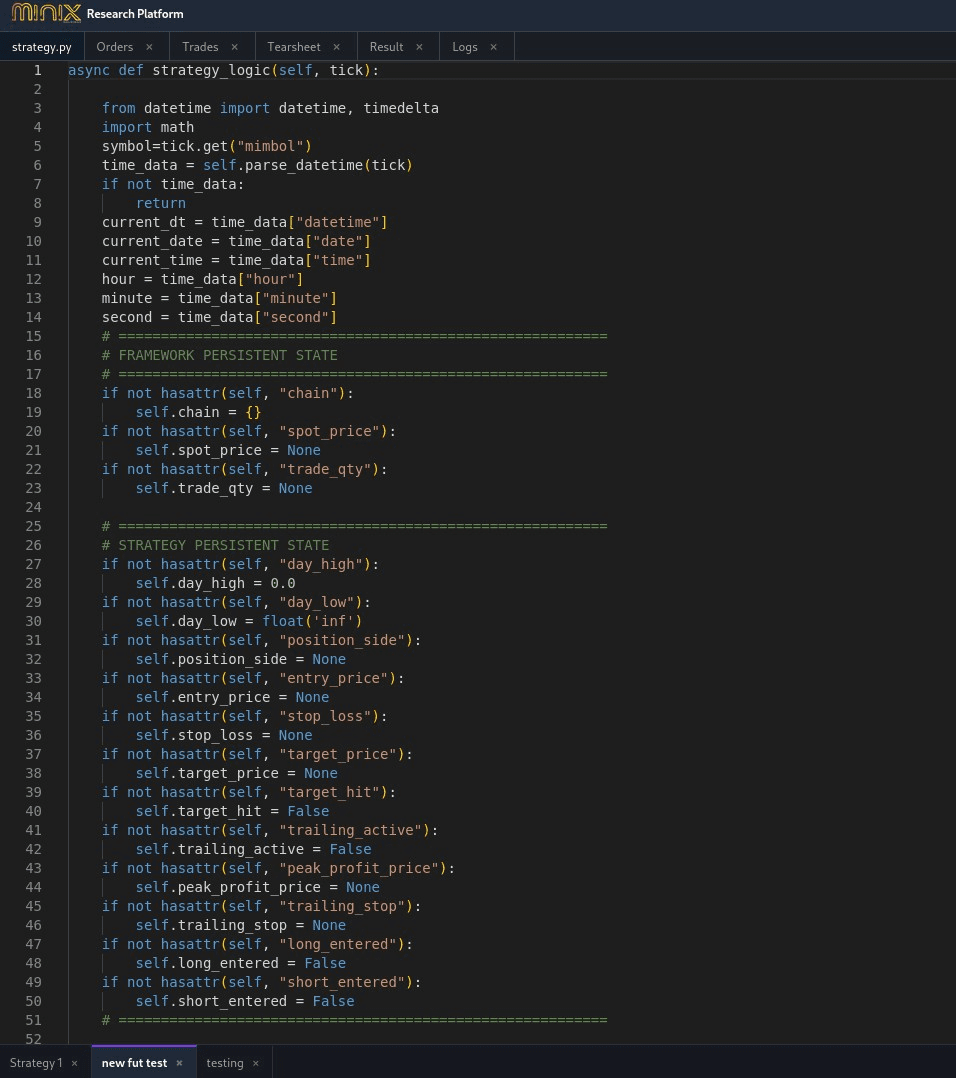
Figure 4a — Bottom tab strip: each open strategy or test keeps its own tab, so you can switch between runs without losing your place.
Configuration fields
| Field | Purpose |
|---|---|
| Mode | Backtest, Paper Trade or Live. |
| Data Source | For now, only 1-minute and 5-minute resolution data is available. Both Index F&O and Stock F&O are supported. |
| Start / End Date | The backtest date range. Data is available from 2023 through to the current date in 2026. |
| Capital | Starting capital for the backtest. |
| Underlying | The index or equity symbol, e.g. NIFTY. |
| Cycle | Which expiries to pull — weekly (W1–W5) or monthly (M1–M3). |
| Option Type / Strike | CE/PE selection and strike offsets (ATM, ATM+N, ATM−N). |
| Lots / Fixed Qty | Position size per leg. |
| DTE | Days-to-expiry filter. |
| Name / ID / Comments | Carried over from the hypothesis step. Comments are optional notes. |
Strategy Logic — API Reference
Every strategy implements exactly one method, called once for each market tick during the backtest.
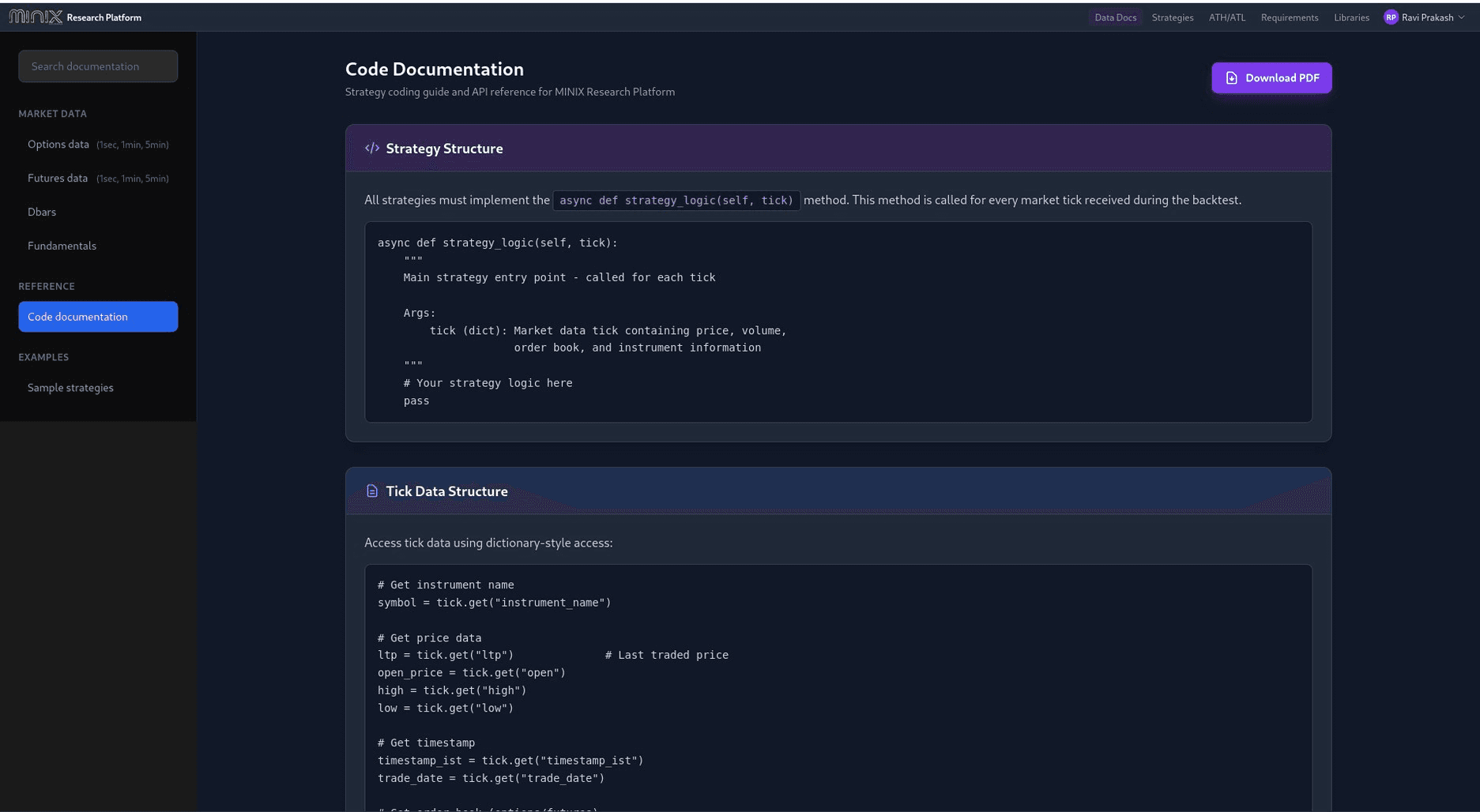
Figure 5 — Code Documentation: Strategy Structure and Tick Data Structure, from the platform's Data Docs tab.
def strategy_logic(self, tick) method. Do not define any other functions outside it, and do not use async or await anywhere in the strategy code — the platform calls strategy_logic synchronously for every tick.strategy_logic. Write and review the code yourself using the Minix framework API until that feature is confirmed reliable for live and backtest use.Best practices (code-level)
- Check that data exists before using it, e.g.
if symbol: - Use
hasattr(self, "_strategy_init")to initialise persistent state exactly once, not on every tick - Handle zero or None prices, e.g.
if price and price > 0: - Wrap timestamp parsing in
try/except - Restrict execution to market hours — 09:15 to 15:30 IST
- Check existing positions with
self.get_existing_qty()before sending new orders, to avoid over-trading - Use
print()or logging insidestrategy_logic— it is the main way to debug a run once it is underway
Market Data Reference
Backtests can run at 1-minute or 5-minute resolution, across NSE options and futures, on Index F&O and Stock F&O, with history available from 2023 through to the current date in 2026. Each row is a single tick for one contract; spot data at the same interval joins directly on timestamp.
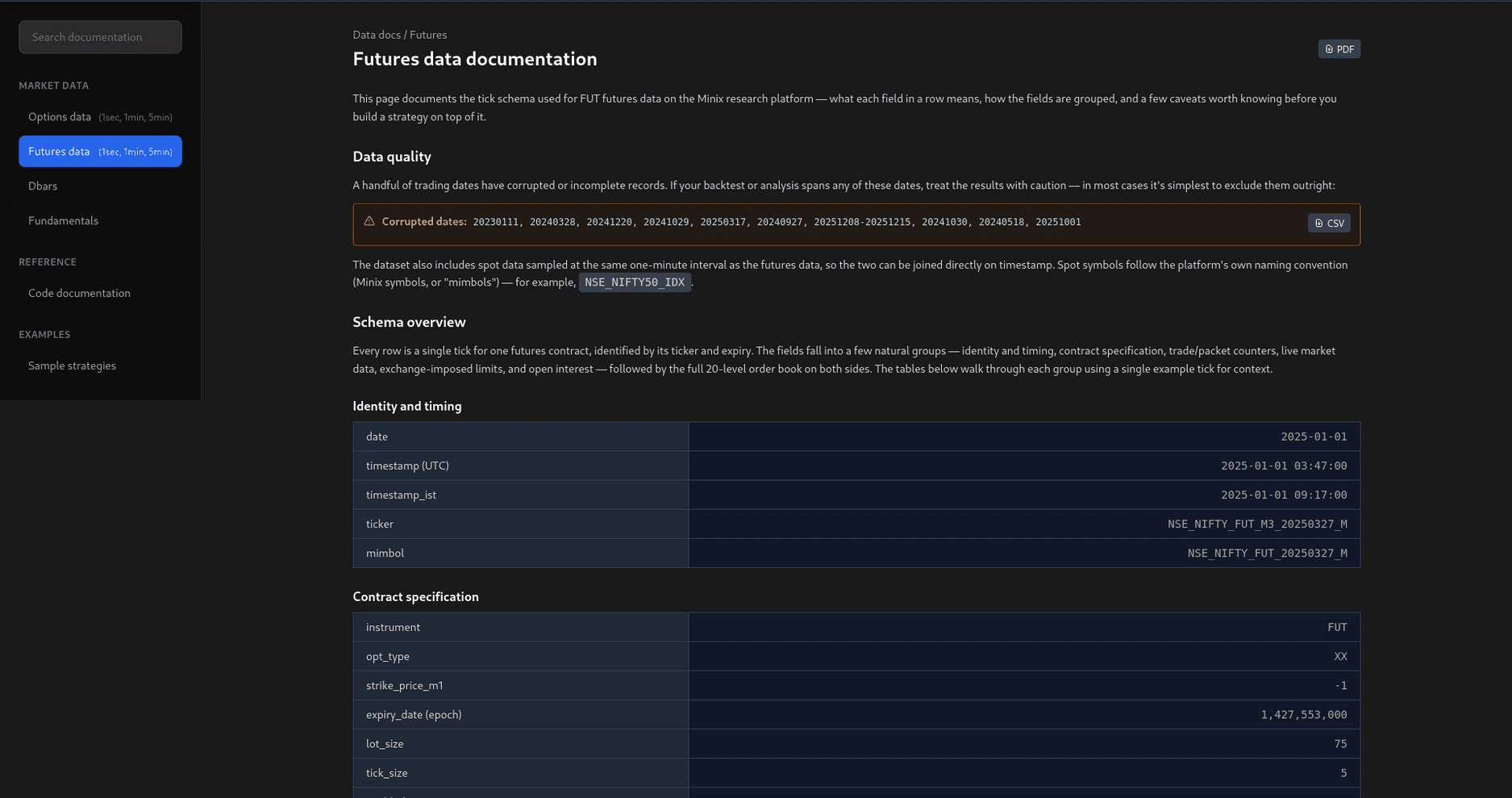
Figure 6 — Futures data schema, from the platform's Data Docs tab.
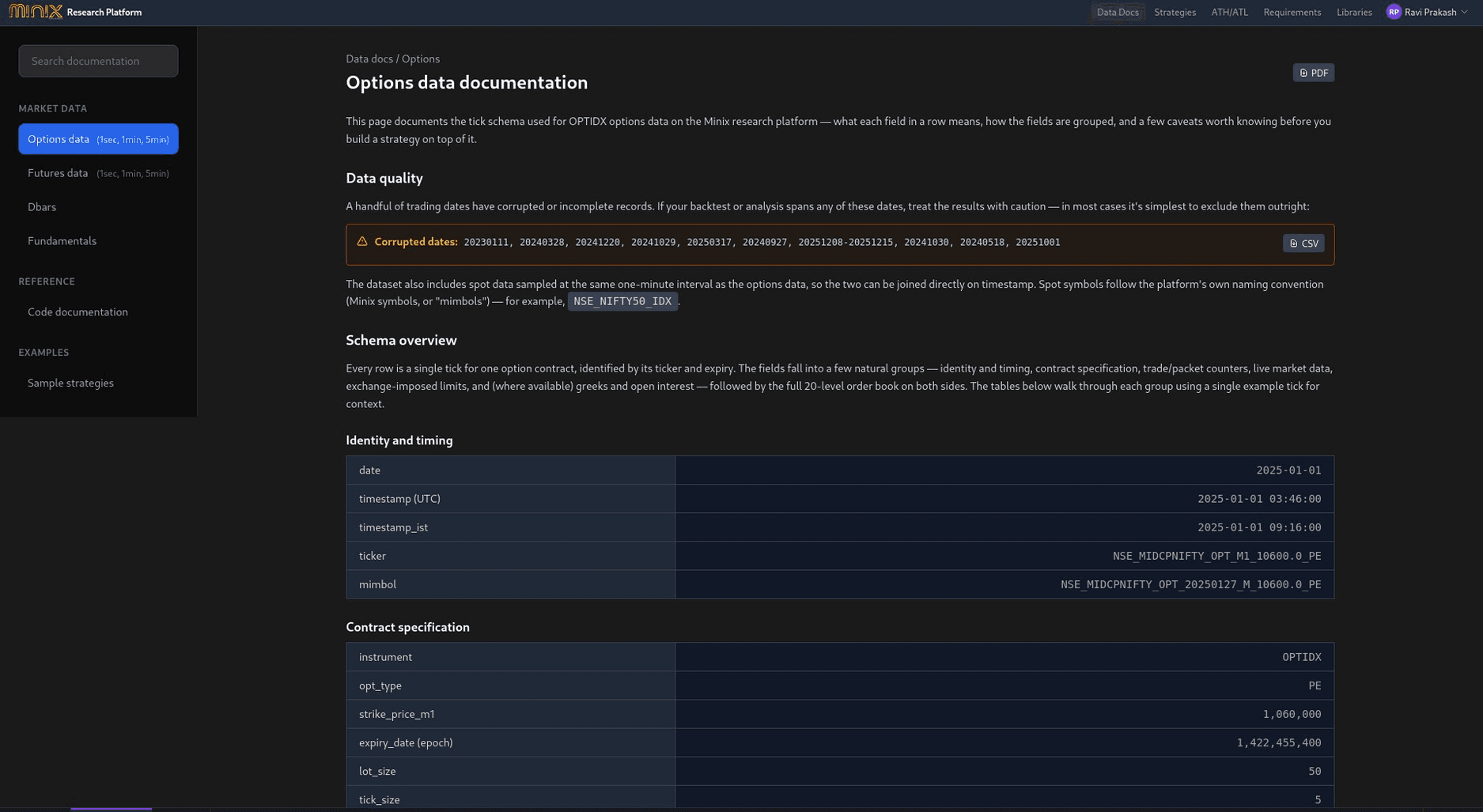
Figure 7 — Options data schema, from the platform's Data Docs tab.
Paper Trading Mode
Switching Mode to Paper Trade replaces the configuration panel with broker and portfolio details, so the same strategy_logic code can run against a live or simulated broker connection instead of historical ticks.
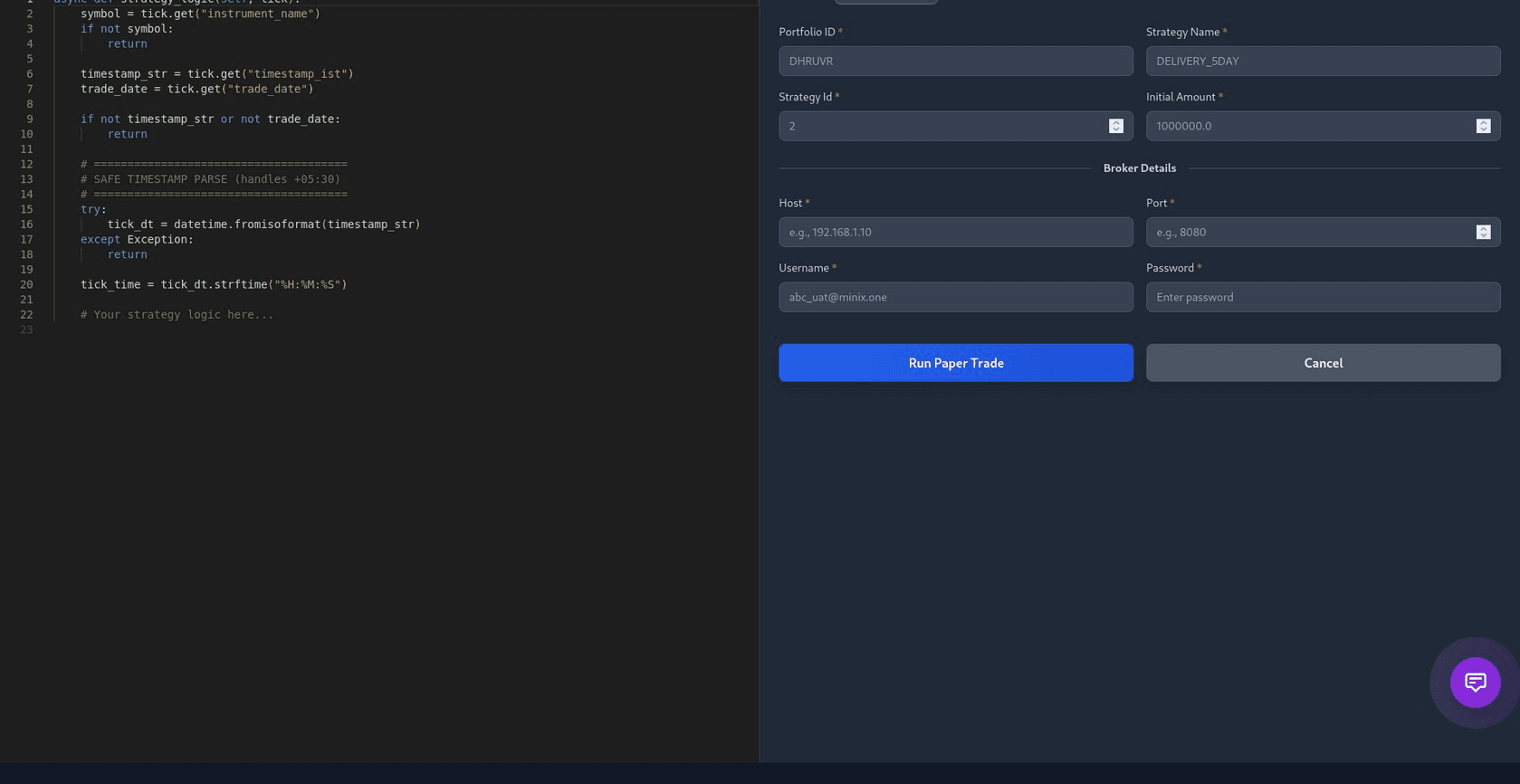
Figure 8 — Paper Trade setup: Portfolio ID, Strategy Name/ID, Initial Amount, and broker Host, Port, Username and Password.
Running and Monitoring a Backtest
Once configuration is set, select Run on the right-hand rail. Once the run completes, each output tab is populated:
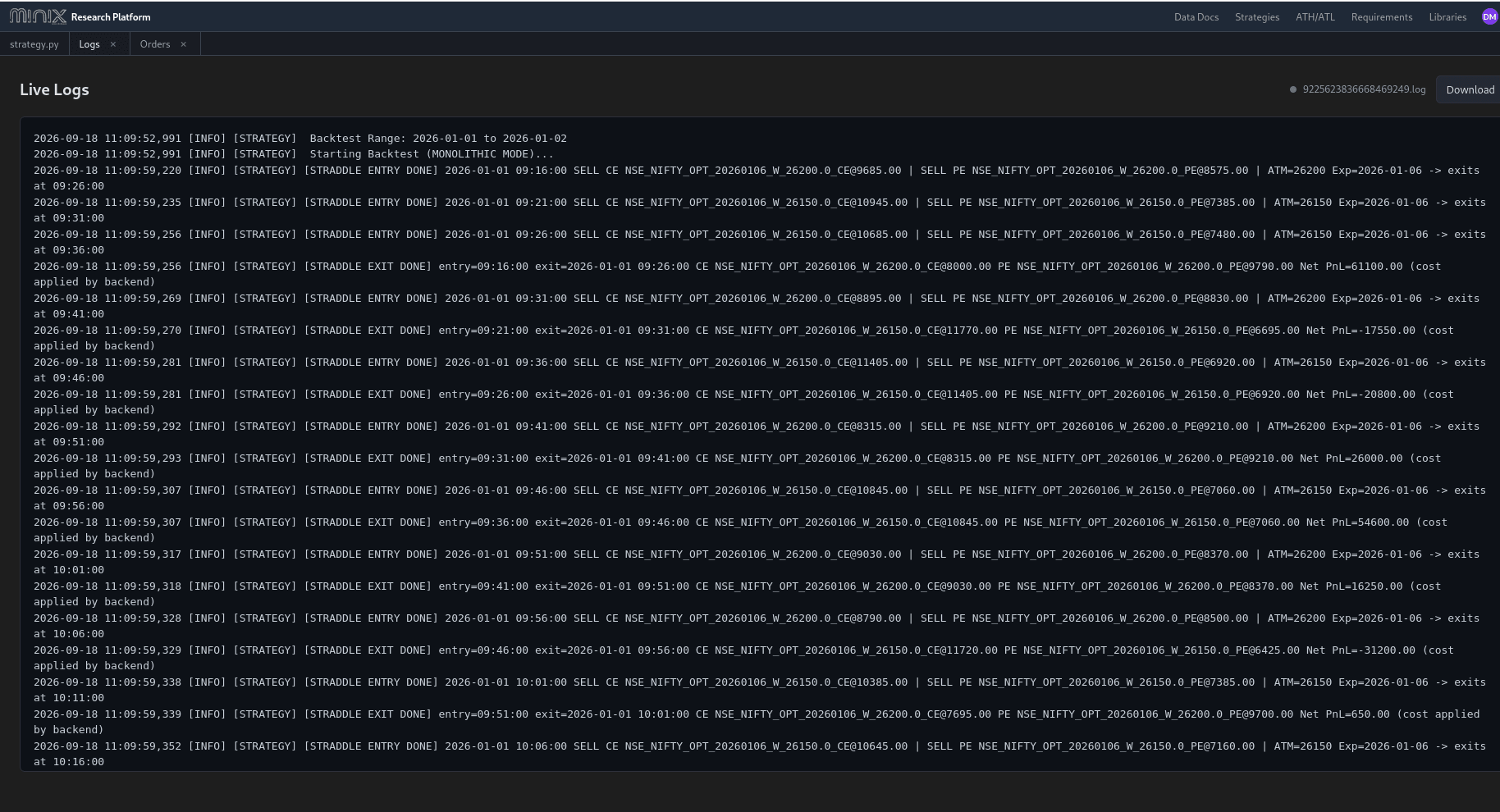
Logs — live output from a completed backtest run.
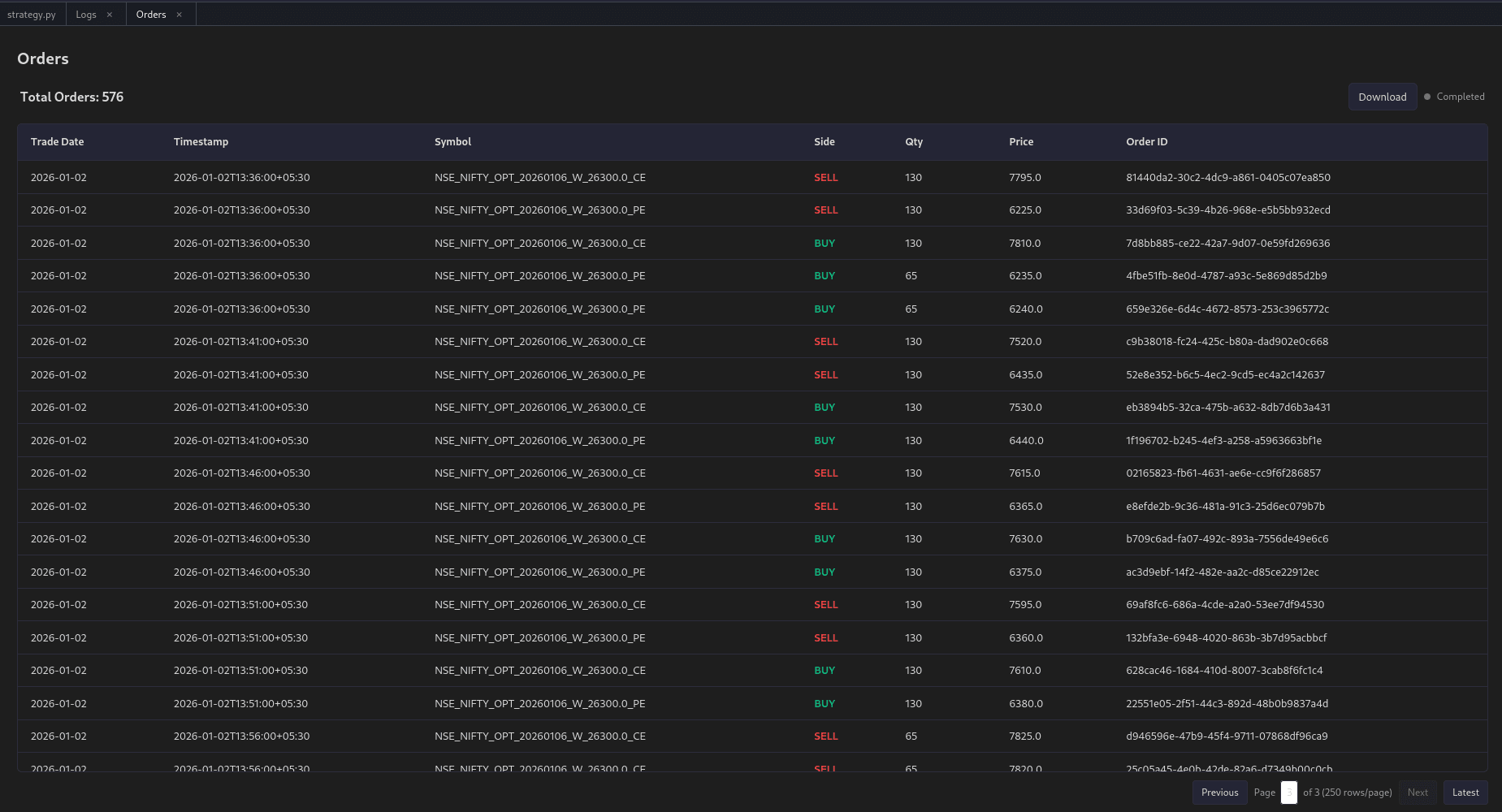
Orders — every order sent during the run, with side, quantity and price.
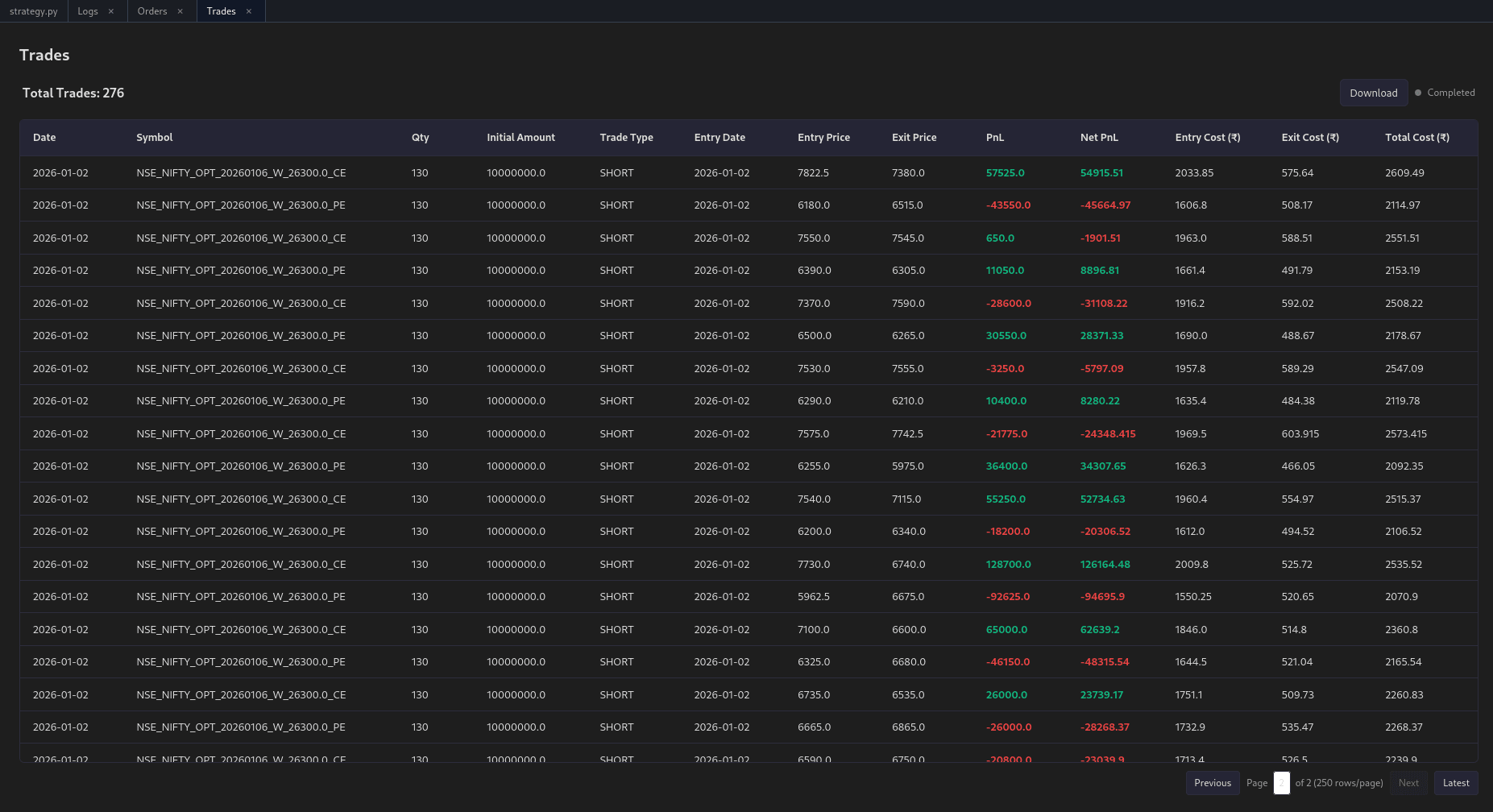
Trades — completed round-trip trades with entry/exit prices and PnL.
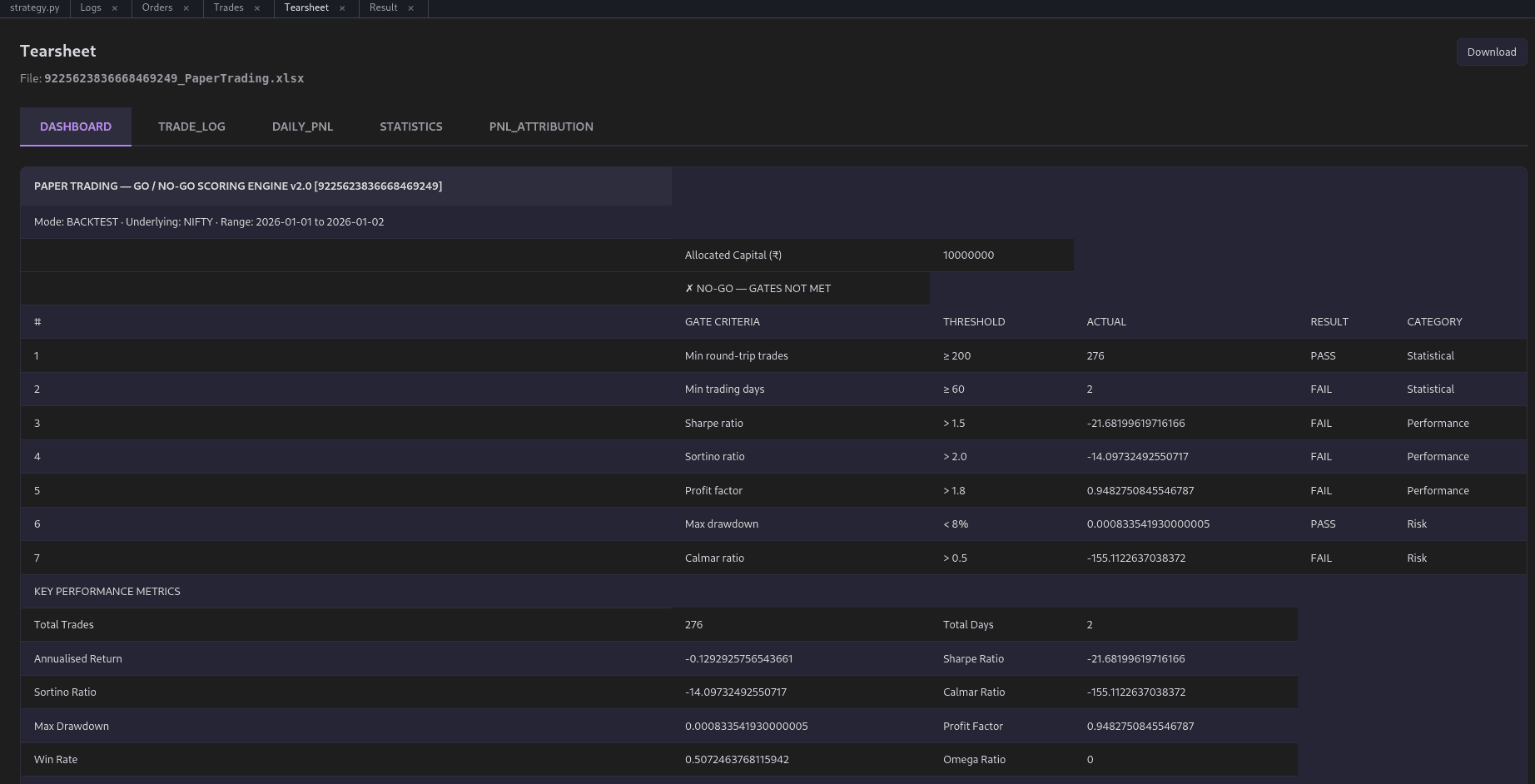
Tearsheet — GO/NO-GO gate criteria and key performance metrics.
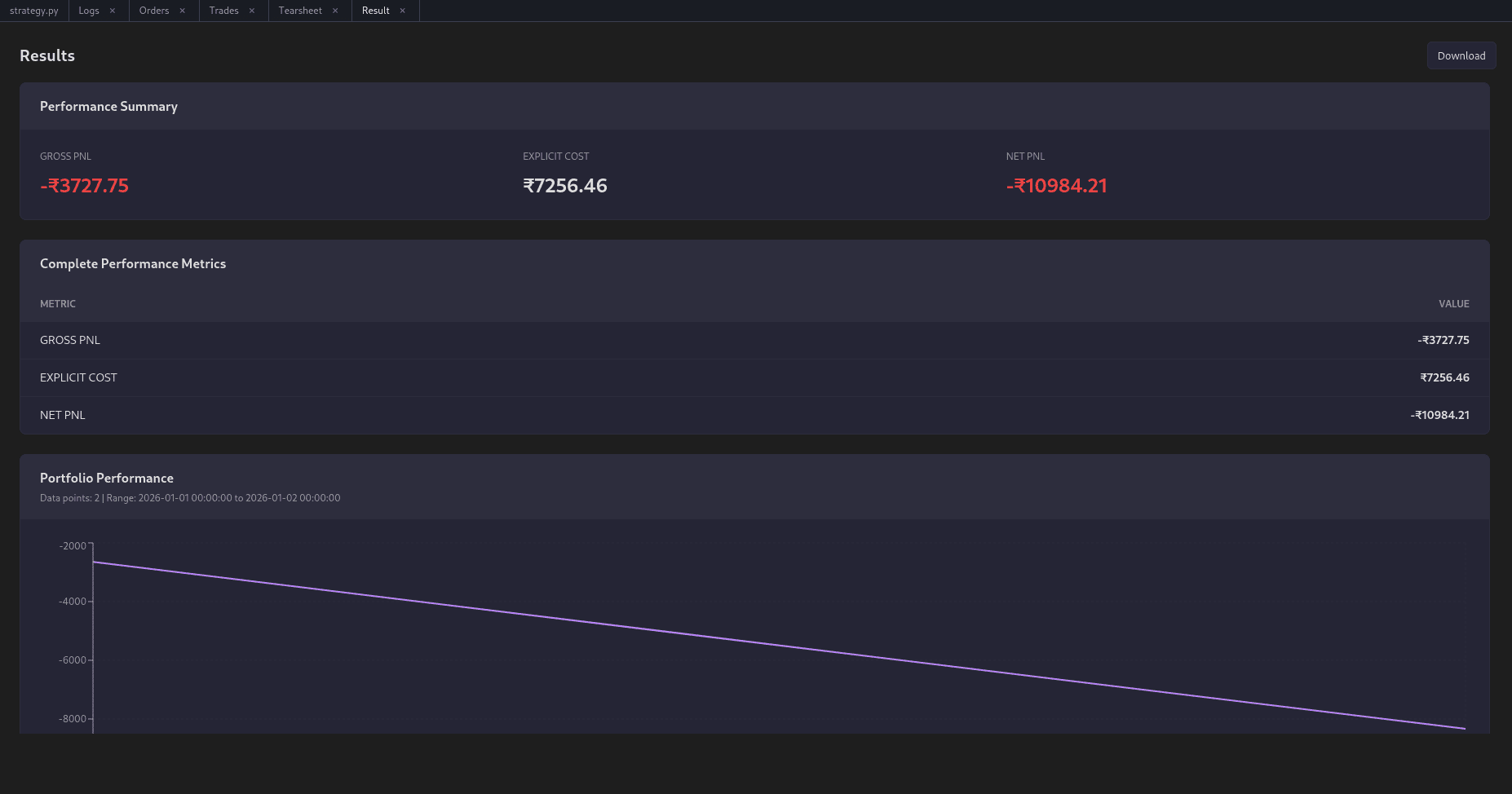
Result — performance summary and portfolio performance chart.
What a completed run looks like
Watch the Logs tab while the backtest runs — every print() or log statement inside the strategy appears there in real time. A successful run means every tick in the selected date range was processed. The platform confirms this explicitly at the end of the run:

Figure 9 — A clean finish: the strategy stops, saves remaining trades, and closes the file.
Once "Run complete" appears, switch to Orders, Trades, Tearsheet and Result to review the backtest output.
Best Practices
- Write the hypothesis first, in enough detail that it maps directly onto the code that follows.
- Keep Cycle and Strike filters narrow — only what the strategy actually trades — for a faster backtest.
- Initialise persistent state once, using a
hasattr()guard, rather than on every tick. - Log generously with
print()— the Logs tab is the main debugging tool while a backtest is running. - Exclude known corrupted dates (Section 7) from any date range that spans them.
- Confirm the existing position size with
self.get_existing_qty()before sending new orders. - Wait for the explicit "Run complete" message in Logs before treating Orders, Trades, Result and Tearsheet as final.
- Write
strategy_logicas a single, plain function — no extra functions outside it, no async/await.
MINIX Research Platform — internal strategy development guide.